See it in motion.
A short tour of Blendon in the Unity 6 Scene view.
Same Scene view. Fewer detours.
Never used Blender? This is what changes in an ordinary working day, next to how Unity does it out of the box.
| You want to | Unity today | With Blendon |
|---|---|---|
| Look around an object | Orbit turns around the Scene view's pivot, so you frame the object first | Orbit turns around the selection, or the point under the cursorMMBdrag |
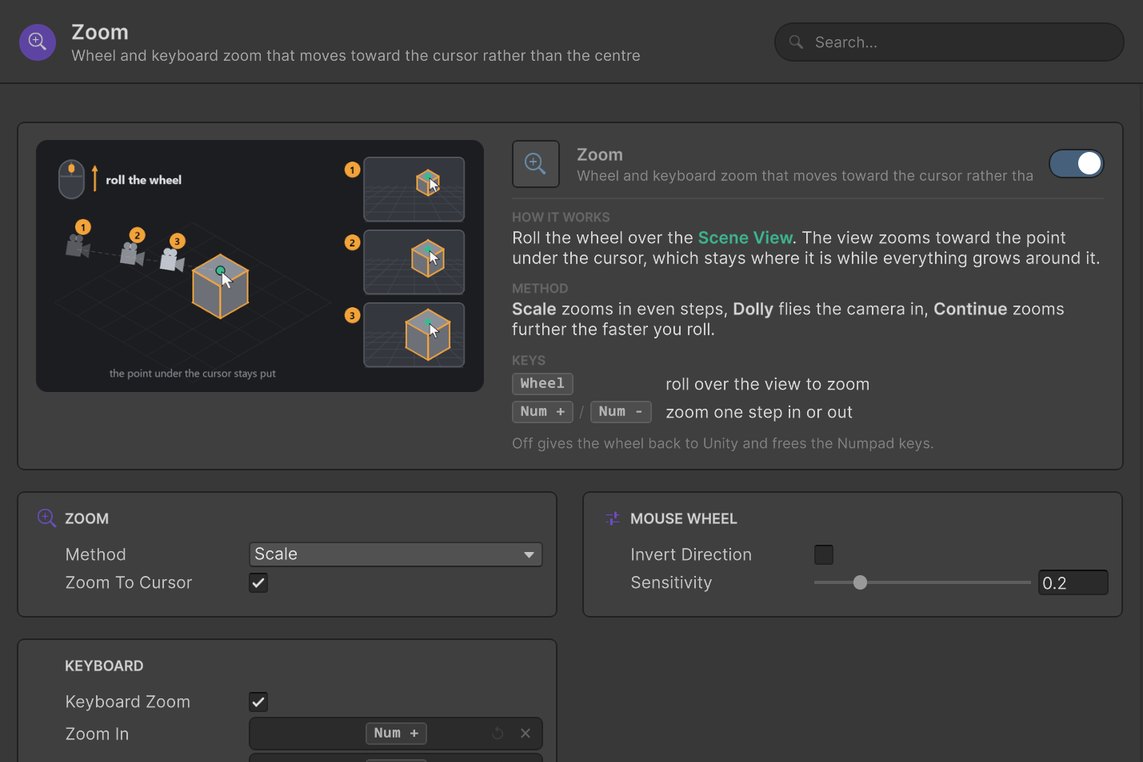
| Zoom in on a detail | The wheel zooms toward the pivot in the middle of the view | The point under the cursor stays where it isScroll |
| Move something exactly 2 m | Drag a handle, then fix the number in the Inspector | Grab, pick the axis, type the distance. No handle, no InspectorGX2Enter |
| Box-select a few objects | Only objects that fit wholly inside the box are picked | Everything the box touches, tested against real trianglesLMBdrag |
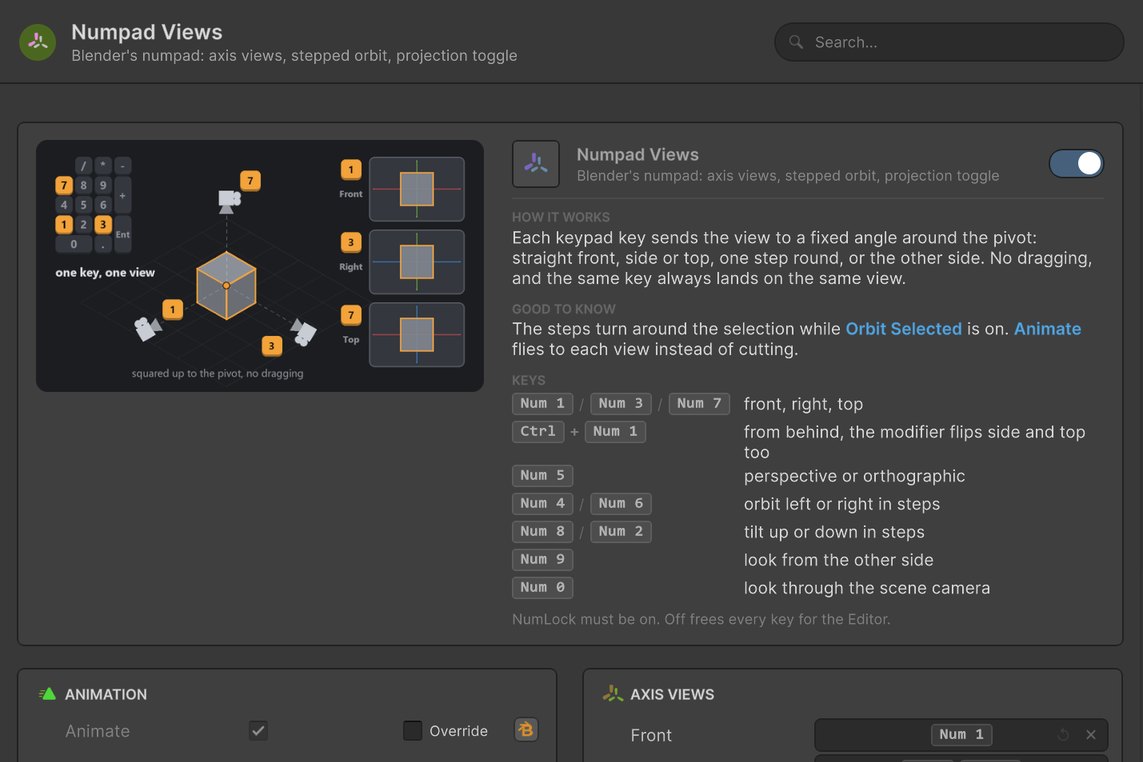
| Look straight down an axis | Click a cone of the scene gizmo | One numpad key, the View pie or an Alt + middle-mouse flickNum 7 |
| Switch draw mode, pivot or snapping | Open a dropdown in the toolbar overlays | Hold a key and flick a pie menuZ/./Shift+S |
| Find a menu command | Right-click and scan the Scene view's menu | Right-click and type: the same entries, grouped and searchableRMB |
Everything your hands already expect.
Navigation, gizmos, scene tools and menus, each tuned from one settings window: Tools → Blendon. Pick a feature to watch it run.
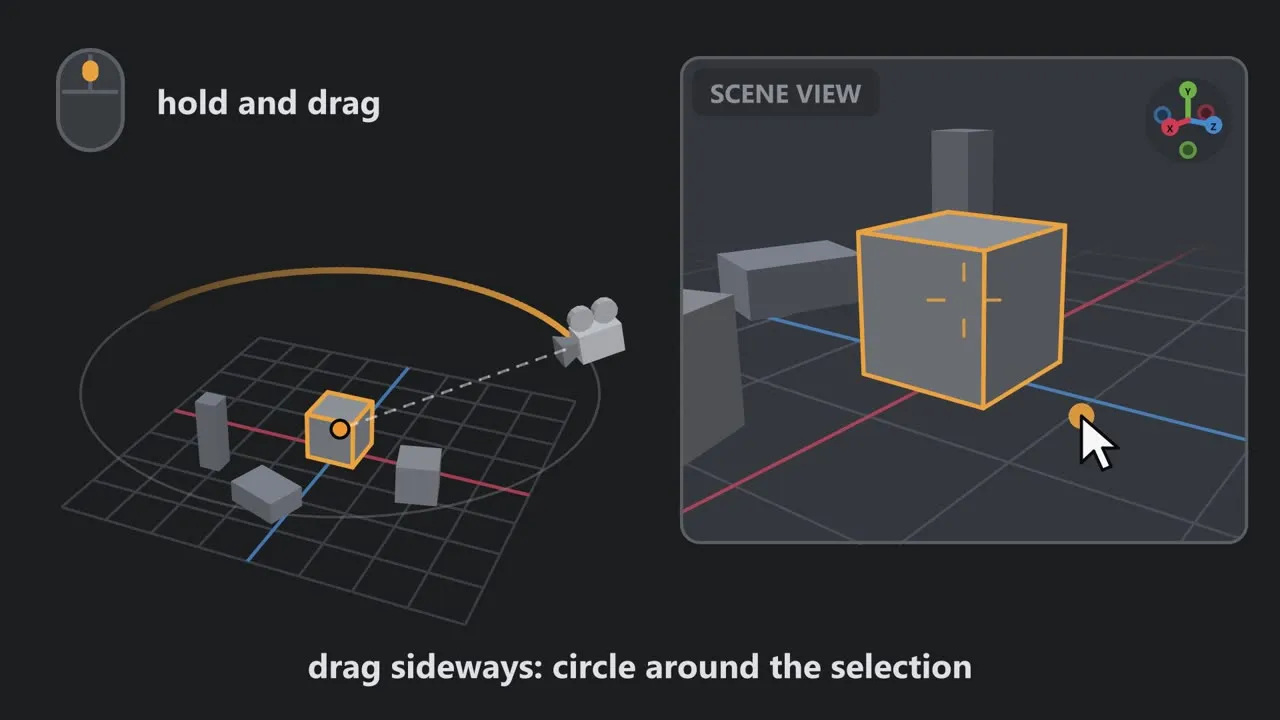
Orbit Selected
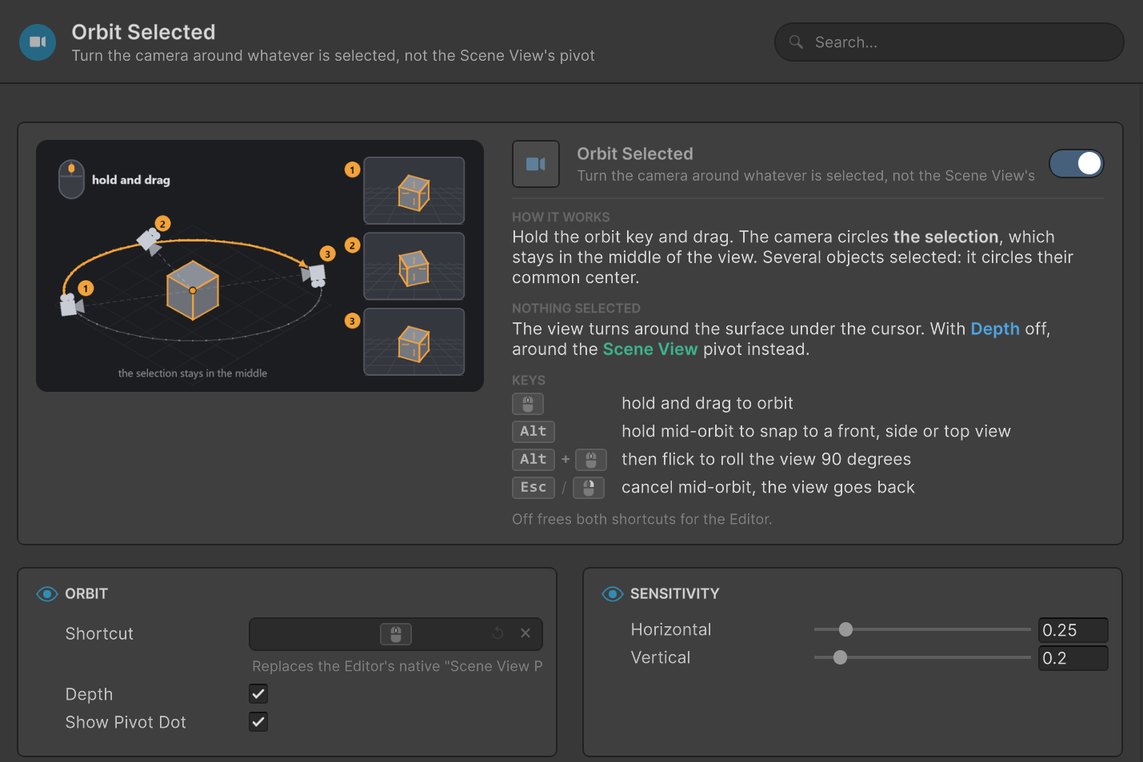
MMBdragOrbit around the selection. Hold Alt to snap to a world axis, flick Alt + MMB to roll 90°.
No handle to hunt for. Just type the number.
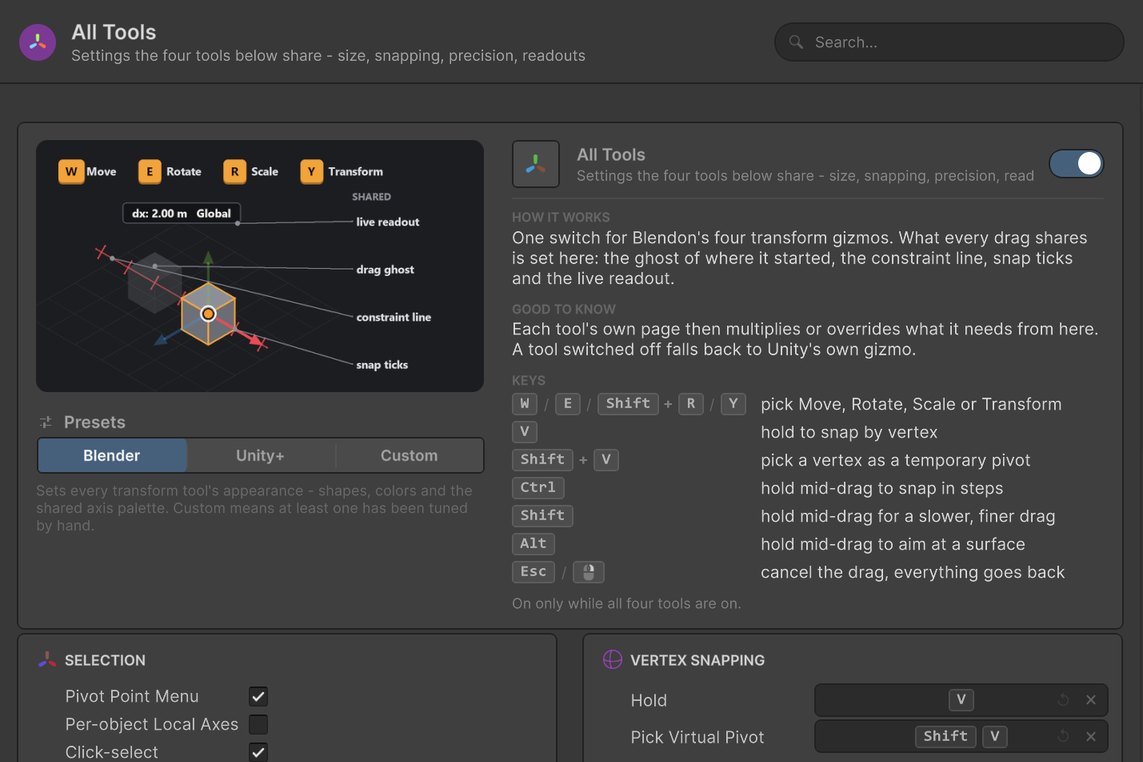
Press G, R or S anywhere in the Scene view and the selection follows the cursor. Constrain with X, Y or Z, type an exact value, confirm with Enter. Typing works mid-drag on any gizmo handle too, and right-click puts everything back.
- GGRAB
- XAXIS
- 2TYPE
- EnterCONFIRM
Eight pies. One key each.
Hold the key, flick toward an item and let go. Or tap it and the menu stays open for a click. Selection is by angle alone, so a flick far past an item still picks it. Point anywhere around the ring below and click.
Never touched Blender? The Scene view teaches you.
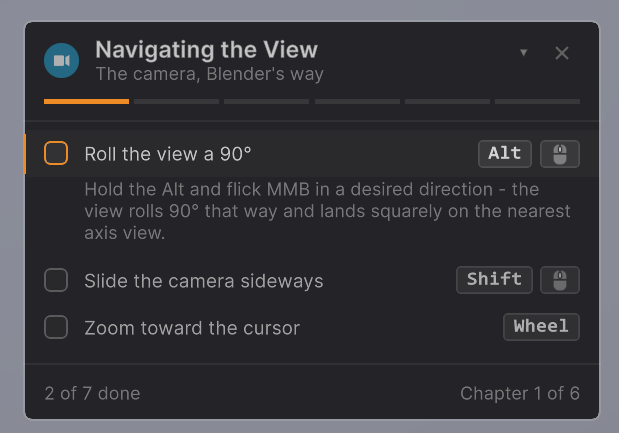
A checklist card walks through the gestures right in the Scene view. A task ticks off only when you actually perform it, not when you read about it. Progress follows you across projects.
Your keys. Your setup. One window.
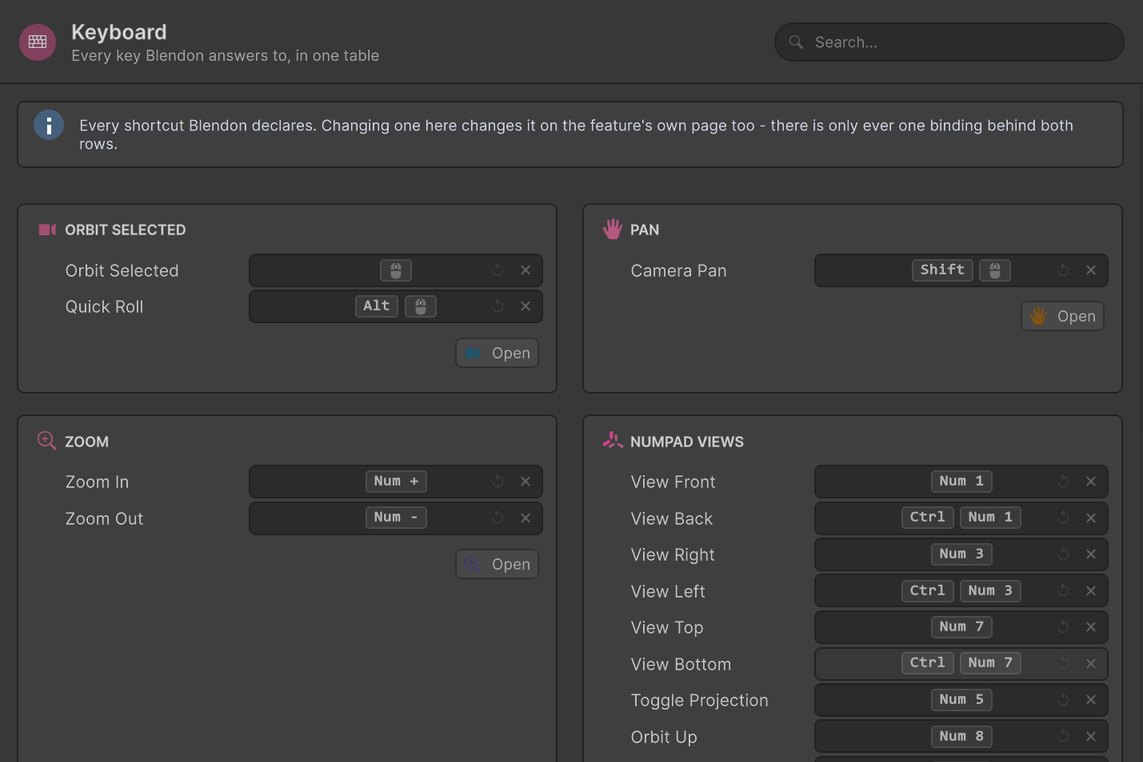
Every feature gets its own page in Tools → Blendon: an illustrated card with how it works and its keys, then the settings. Flip through a few.
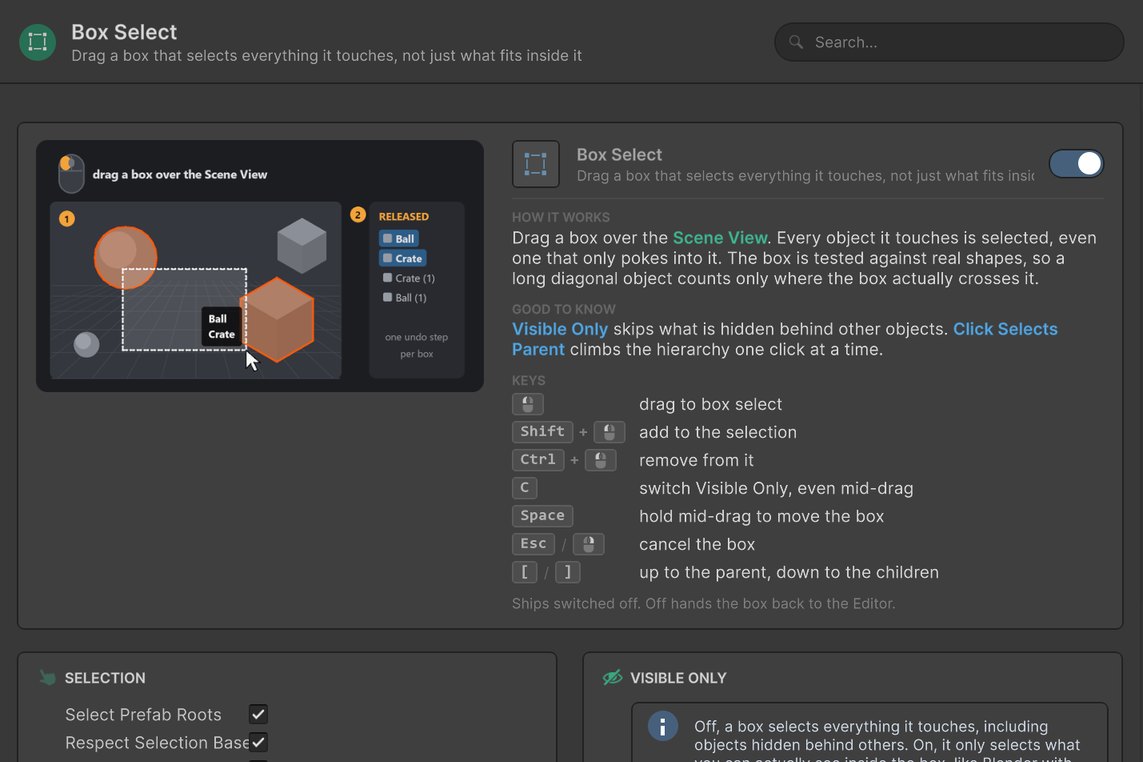
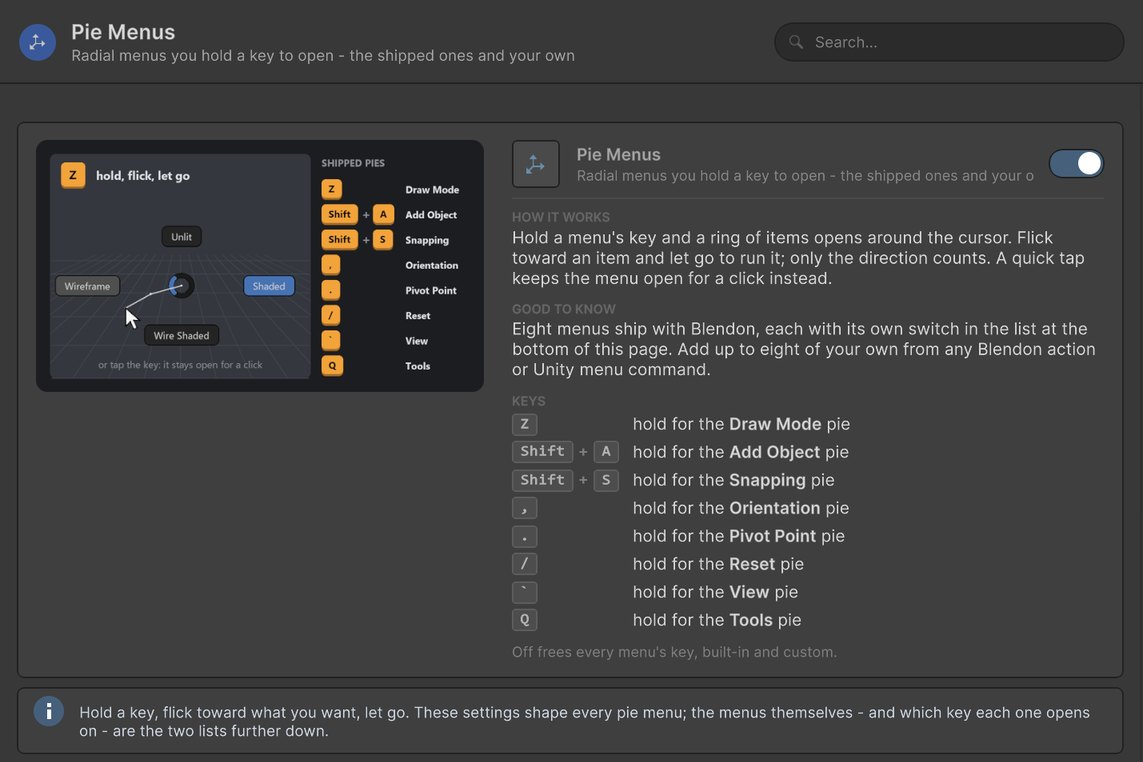
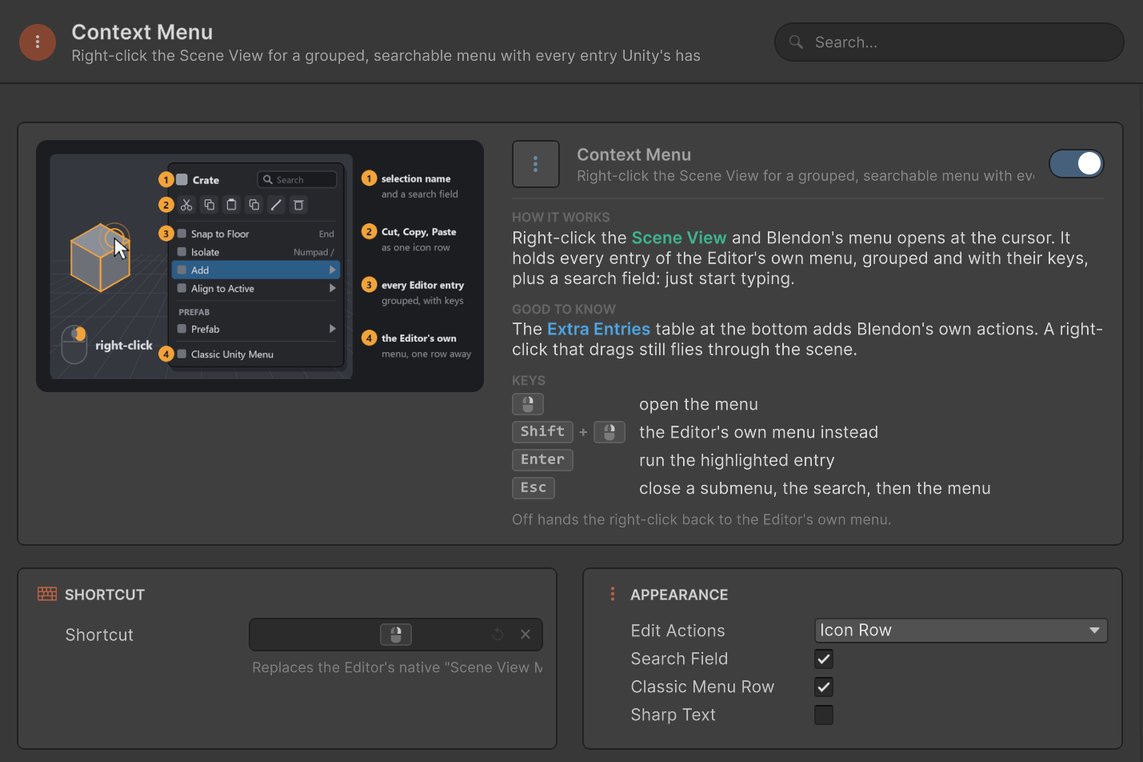
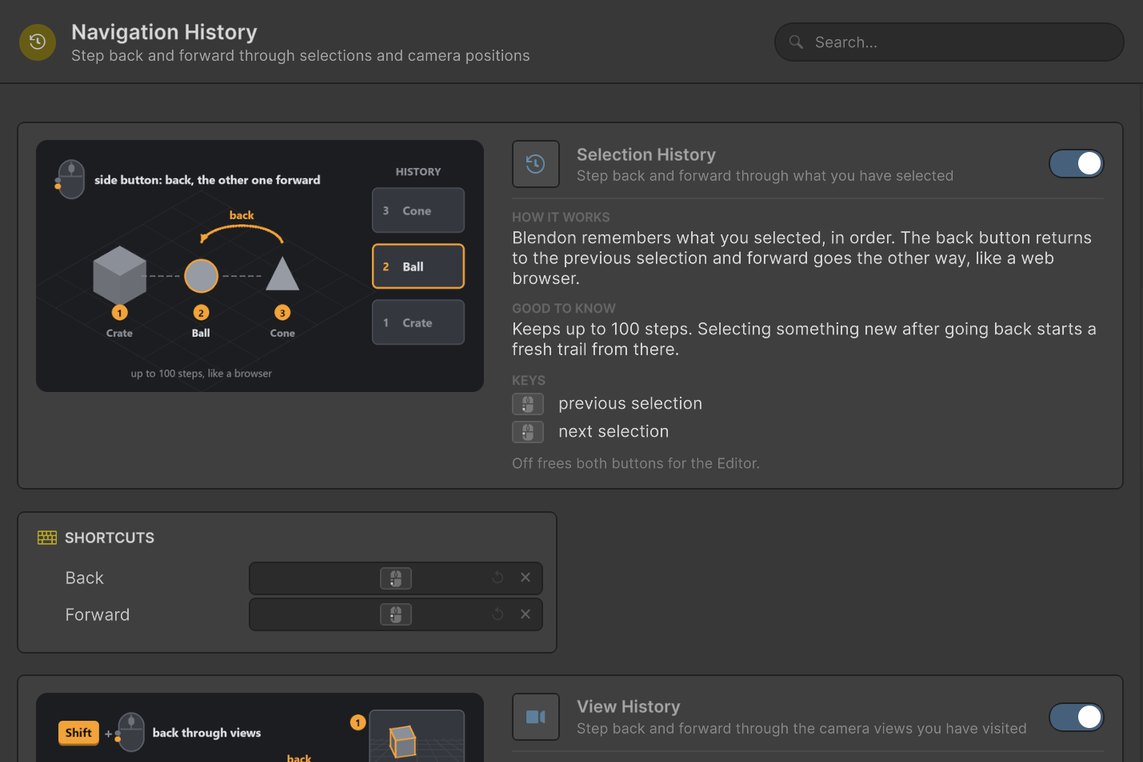
Blendon
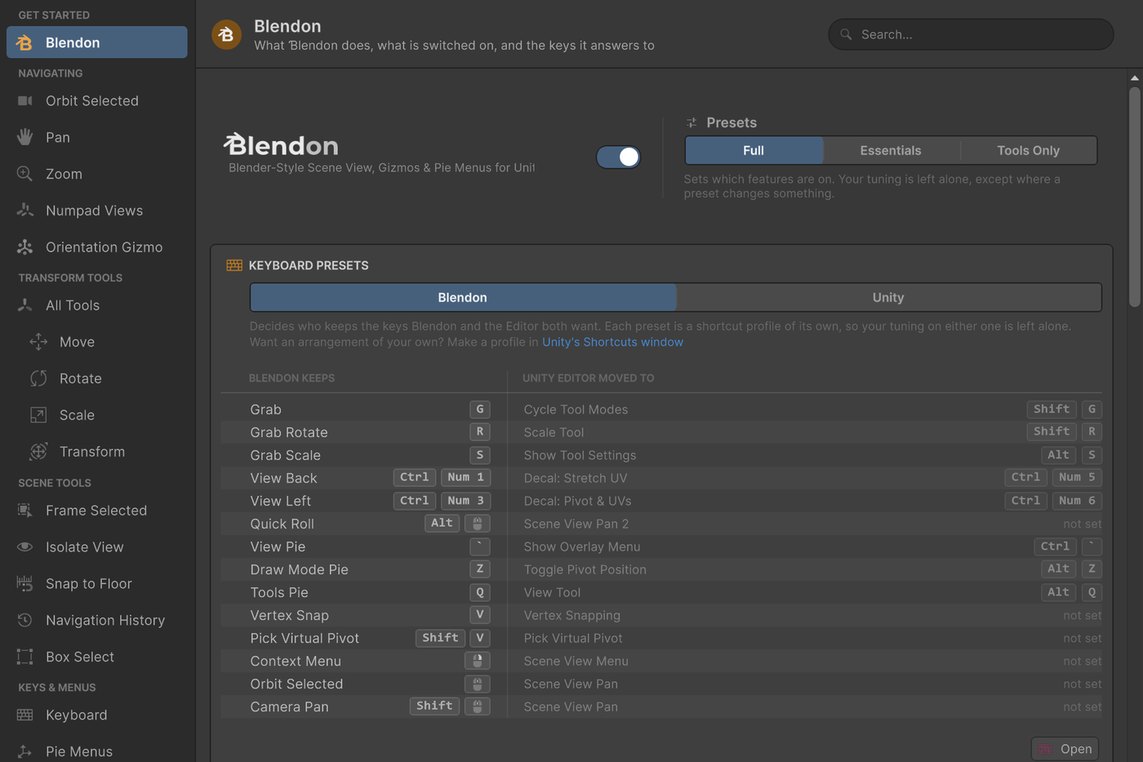
What Blendon does, what is switched on, and the keys it answers to
The start page. A master switch, three feature presets and the keyboard preset that decides who keeps a contested key. Clashes are listed side by side: Blendon keeps Grab on G, and Unity's Cycle Tool Modes moves to Shift + G.
Keep your Unity habits. Pick up Blender's at your own pace.
On first load Blendon asks one question: which keys it may take. Nothing is written until you answer, and the answer can be changed any time on the Overview page of Tools → Blendon.
| Key | Blendon preset | Unity preset |
|---|---|---|
| MMBdrag | Orbit SelectedPan → Shift+MMB | PanOrbit Selected → Ctrl+MMB |
| G | GrabCycle Tool Modes → Shift+G | Cycle Tool ModesGrab → Shift+G |
| R | Grab RotateScale tool → Shift+R | Scale toolGrab Rotate → Shift+R |
| S | Grab ScaleShow Tool Settings → Alt+S | Show Tool SettingsGrab Scale → Alt+S |
| Z | Draw Mode pieToggle Pivot Position → Alt+Z | Toggle Pivot PositionDraw Mode pie → Alt+Z |
| V | Blendon's vertex snapSwitched off: Blendon's is the same mode, without its limits | Unity's vertex snapBlendon's vertex snap → Alt+V |
Both presets are real Unity shortcut profiles. The command that loses a key moves one modifier aside, and the settings window lists every pair.
Feel it in your hands, right here.
A Unity Scene view with Blendon installed and Blendon's settings window, simulated in the browser. Click into the Scene view, then orbit with the middle mouse button, press G to grab, type a distance, hold Z for a pie menu. Flip a switch or rebind a key in the Blendon tab and the Scene view follows. Changes live only on this page.
Demo only. This is a browser simulation of Unity and Blendon. Some features may not work properly or may be unavailable in the browser.
Every default, on one sheet.
All of them rebindable from Blendon's settings window or Unity's Edit → Shortcuts. On macOS, Ctrl and Alt read Cmd and Option.
Built to stay out of your project.
- Unity 6000.0 or newer
- Built-in Render Pipeline, URP or HDRP
- Windows, macOS or Linux
- A middle mouse button for orbit and pan. On a trackpad, rebind both in Tools → Blendon
- A numeric keypad, only for Numpad Views. Without one, the View pie and the Orientation Gizmo reach the same views
- EditorPrefs for settings
- Its own Shortcut Manager profile for keys
- Blendon/PieMenus.json in your user settings folder
Questions before you buy.
Does it work in Unity 2022 LTS or older?
No. Blendon needs Unity 6000.0 (Unity 6) or newer. Everything added after 6.0 goes through a compatibility layer, so Unity 6.0 and the newest release behave the same.
Will it break my Unity muscle memory?
Only if you let it. On the Unity keyboard preset the Editor keeps every key and Blendon's gestures move aside: orbit to Ctrl + middle mouse, pan to Alt + middle mouse. Or start with the Tools Only preset and switch features on as you go. Compare the two presets.
Do I need a numpad or a three-button mouse?
A numpad only for Numpad Views: the View pie and the Orientation Gizmo reach the same views without one. Orbit and pan use the middle mouse button by default, and both can be rebound to suit a trackpad.
Does it work on macOS and Linux?
Yes, on Windows, macOS and Linux. Key labels follow the platform, so macOS shows Cmd and Option where Windows shows Ctrl and Alt.
Which render pipelines does it support?
All of them. Blendon draws through the Editor's own Handles and gizmo systems, so the Built-in Render Pipeline, URP and HDRP behave the same.
Does it touch my project, my builds or version control?
Beyond its own folder, no. Blendon is Editor-only and adds nothing to player builds. Settings go to EditorPrefs, keys to its own Shortcut Manager profile and pie menus to a file in your user settings folder.
Can I undo what it does?
Yes. Every gizmo drag, grab, box selection, reset and added object is a single undo step, and Esc or a right-click cancels a drag before it lands.
Does it get in the way of Splines, Terrain or other tools?
No. Tool contexts such as Splines or Terrain painting keep their own input, as they do without Blendon. With the Splines package installed, the Tools pie can even start Create Spline.
How is it licensed?
Per seat, under the Unity Asset Store's standard terms: everyone who uses Blendon needs a license of their own. It is a one-time purchase.
Is it still being worked on?
Yes. Blendon is updated often, and updates arrive through the Package Manager like any other Asset Store package.
Can I get a refund?
Yes. If Blendon doesn't suit the way you work, request a refund through the Unity Asset Store.
Is the source code included?
Yes, the full C# source, plus an illustrated PDF manual.
How do I remove it completely?
Select Default in Edit → Shortcuts, click Reset All Pages on the Overview page of Tools → Blendon, then delete the Blendon folder. Your own pie menus stay in Blendon/PieMenus.json in your user settings folder until you delete that file too.

Make the Scene view move the way your hands already do.
- Full C# source included
- Illustrated PDF manual
- Editor-only: nothing in your builds
- Frequent updates